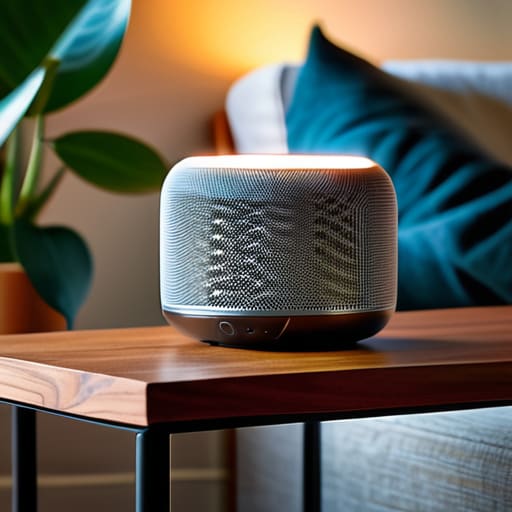

I spent three hours last Tuesday hunched over my workbench with a precision screwdriver, trying to figure out why my new little cylinder wouldn’t stop pulsing a rhythmic, judgmental red. Most manuals will tell you that learning how to set up a smart speaker is a seamless, magical experience of “plug and play,” but they never mention the frustration of a device that refuses to acknowledge your existence. I had to peel back the metaphorical curtain—and quite literally unscrew a casing on a similar model last month—to realize that these things aren’t just “smart”; they are tiny, hungry computers that are extremely picky about how they talk to your router.
I’m not here to give you a glossy marketing brochure or a list of vague technical jargon that leaves you more confused than when you started. Instead, I’m going to walk you through the actual, messy reality of getting that little machine to behave. We are going to look past the shiny plastic exterior and focus on the practical steps—from the initial handshake with your phone to the moment you finally get that little light to turn steady. By the time we’re done, you won’t just have a gadget on your counter; you’ll actually understand what it’s doing when it’s listening.
Guide Overview
Tools & Supplies
- Smartphone or Tablet with camera and internet access
- Stable Wi-Fi Network for connectivity
- Smart Speaker 1 unit
- Power Adapter 1 unit
Step-by-Step Instructions
- 1. First, you need to unbox the thing and find its power source. I’ve spent enough time with old grandfather clocks to know that nothing moves without a steady flow of energy, and these little cylinders are no different. Plug the cord into the wall and wait for that first sign of life—usually a pulsing light that tells you the internal processor is finally waking up from its slumber.
- 2. While that light is blinking, grab your smartphone and download the specific app the manual mentioned. I know, I know, it feels like a lot of extra steps, but that app is essentially the translator between your home’s invisible Wi-Fi signals and the speaker’s hardware. Once it’s installed, make sure your phone’s Bluetooth is turned on, because the two devices need to perform a little digital handshake before they can become friends.
- 3. Open the app and look for a button that says “Add Device.” This is where the software starts scanning the airwaves for the speaker’s unique radio frequency. You’ll see your speaker pop up on the screen like a little ghost in the machine; tap it, and you’re telling the app, “I see you, and I want you to work.”
- 4. Now comes the part that always feels a bit like magic, though it’s really just data transmission. The app will ask for your Wi-Fi password—and yes, it’s case-sensitive, so don’t let a stray capital letter trip you up. Once you enter it, the speaker will attempt to latch onto your router, and you’ll see that light change from a frantic blink to a steady, calm glow.
- 5. Once the connection is established, the speaker will likely ask you to “train” it. This is the most important part for me: you are teaching the microphone array to recognize the specific resonance of your voice. It will ask you to repeat a few phrases, and you should speak clearly, as if you were explaining a physics problem to a student who is distracted by a passing bird.
- 6. Finally, give it a little test run to make sure the gears are actually turning. Ask it something simple, like the weather or a bit of trivia, and listen closely to the response. If it answers correctly, you’ve successfully tamed the machine; if it just stares at you in silence, you might need to go back and check if your router is actually talking to it.
Connecting Smart Speaker to Wifi Without Losing the Soul
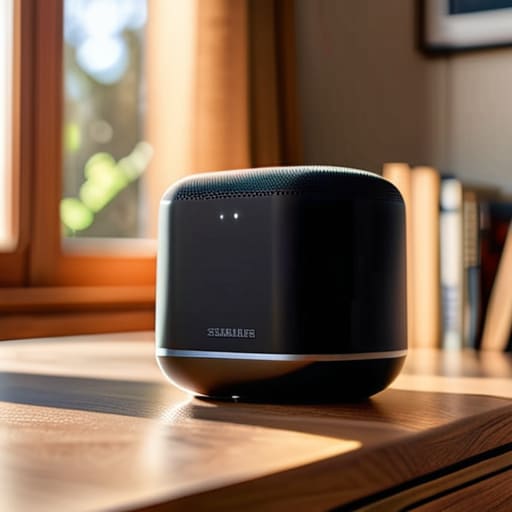
Now, here is where most people hit a wall. You’ve got the device, the app is open, and suddenly it feels like the machine is being stubborn. When I sat at my workbench with my latest project, I realized that connecting smart speaker to wifi isn’t just about a password; it’s about the invisible architecture of your home. If your router is tucked away behind a heavy oak bookshelf or a stack of old physics journals, that signal is going to struggle. I always tell my students that waves don’t like obstacles, and neither do these little silicon brains. If the connection keeps dropping, move the speaker into the open air before you start any more troubleshooting.
Once you’ve conquered the signal, you have to deal with the “soul” of the thing—the settings. This is where you move from mere setup to actual voice assistant configuration. I spent a good hour yesterday digging through the menus just to ensure I knew exactly how the device behaves when I’m not in the room. Don’t just accept the factory defaults; take a moment to look at the privacy toggles. I like to know exactly when those little microphones are actually listening and when they’re just sitting idle, waiting for a command.
Voice Assistant Configuration Giving the Machine a Purpose
Once you’ve finished the initial voice assistant configuration, you’ll realize the device is essentially a blank slate—a collection of silicon and copper waiting for a reason to exist. I spent an afternoon with my screwdriver and a disassembled prototype of an early smart hub, and it taught me that these machines don’t “know” anything; they just wait for a trigger. To make it useful, you have to move past the novelty of asking for the weather. Start by automating daily routines, like having it announce your first calendar event while the coffee maker is warming up. If you don’t give it a rhythm, it’s just an expensive paperweight sitting on your sideboard.
I also suggest being quite deliberate about managing microphone privacy settings right from the start. I like to think of the microphone as a mechanical diaphragm—it’s always physically capable of moving, but you need to decide when it’s allowed to “listen.” Most of these units have a physical kill-switch, a little sliding shutter that breaks the circuit. I always test these myself; if the light doesn’t go dark when you slide it, the mechanism is faulty. It’s much better to know exactly where that physical boundary lies before you start inviting the machine into your private conversations.
Five Ways to Keep the Machine from Becoming a Nuisance
- Don’t tuck it into a corner behind a heavy curtain or a stack of books. I’ve spent enough time looking at wave patterns to know that if you muffle the microphone with fabric, you’re just forcing the device to strain, and a strained machine is a glitchy machine. Give it some breathing room so it can actually hear you.
- Find the physical “mute” switch before you get too comfortable. Every one of these little cylinders has a mechanical kill-switch—usually a tiny sliding lever or a button that cuts the power to the microphone circuit entirely. Knowing exactly where that is gives you the peace of mind that the device is truly “off” when you’re having a private conversation.
- Place it away from the kitchen’s humming refrigerator or the TV’s speakers. If the ambient noise floor is too high, the device spends all its processing power trying to filter out the background static instead of listening to your actual commands. It’s like trying to teach a student in a room where a vacuum cleaner is running.
- Group your devices by room, not by brand. When I set up my little ecosystem, I didn’t care that one lightbulb was from one company and the speaker was another; I wanted them to behave as a single unit. Mapping them to “Living Room” or “Kitchen” in the app makes the logic of the house follow your habits, rather than forcing you to learn the machine’s logic.
- Test the “wake word” from the furthest point in the room. Once you think you’re done, walk to the doorway and call out to it. If you have to shout to get its attention, you haven’t set it up correctly. A well-placed speaker should catch your voice even when you’re just passing through.
The Mechanics of a Smart Home
Don’t mistake a connection for understanding; a speaker is just a collection of microphones and a tiny processor until you’ve actually mapped out which specific tasks it’s going to handle for you in your daily routine.
Treat your Wi-Fi like the mainspring of a clock—if the signal is weak or the connection is jittery, the whole mechanism will stutter, no matter how expensive the device is.
A device only truly works when it serves a habit, so skip the flashy gimmicks and focus on setting up the commands that actually make your morning coffee or your evening wind-down feel a little more seamless.
The Quiet After the Setup
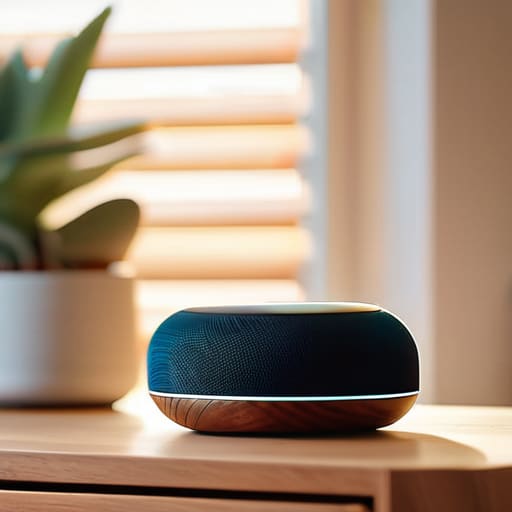
Now that you’ve navigated the digital handshake between your router and that little plastic cylinder, the hard part is over. We’ve moved from the messy reality of pairing Bluetooth signals and configuring privacy settings to a state of relative equilibrium. You’ve successfully bridged the gap between a silent object on your sideboard and a tool that actually responds to your presence. Just remember: the goal wasn’t just to get the light to turn blue, but to ensure the connection is stable enough that you aren’t left shouting into a void when you just wanted to know the weather. You have turned a piece of hardware into a functional part of your domestic ecosystem.
As I sit here at my workbench, looking at the gears of a 19th-century pendulum clock, I am reminded that even the most complex systems are just a series of small, intentional movements working in concert. Your smart speaker is no different; it is simply a modern assembly of electromagnetic waves and code. Don’t let the “magic” of the voice assistant intimidate you. Once you understand the rhythm of how it listens and how it responds, it ceases to be a mysterious intruder and becomes a predictable instrument. Treat it like any other tool in your kit: respect its limitations, understand its mechanics, and let it serve you, rather than the other way around.
Frequently Asked Questions
What happens to the data once I stop talking and the little light goes dark?
That little light going dark is the most deceptive part of the whole mechanism. When it shuts off, the physical microphone might stop drawing power, but the “ghost” is still very much awake. Your voice has already been sliced into digital packets and sent up a wire to a server farm miles away. They aren’t just listening for commands; they’re cataloging the patterns of your life to better predict your next move.
If my Wi-Fi goes down, is the speaker just a very expensive, silent paperweight?
The short answer? Yes, mostly. Without that invisible stream of data, your speaker loses its brain. I’ve sat there with a dead router, staring at a device that refuses to even tell me the time. It’s a hollow shell of silicon and magnets. However, if you’ve set up local routines or Bluetooth pairing, it might still act as a basic speaker. But for the “smart” part? Once the signal dies, the magic stops.
Can I take the microphone out so it actually stops eavesdropping on my afternoon tea?
I wouldn’t recommend reaching for the screwdriver just yet. I’ve opened up enough small electronics to know that these microphones are often soldered directly onto the main logic board. If you snap that tiny component off, you aren’t just stopping the eavesdropping; you’re likely shorting the whole circuit and turning your speaker into a very expensive paperweight. If you want silence during tea, use the physical mute button—it’s a much cleaner way to sever the connection.



