

I was sitting at my workbench last Tuesday, squinting through my jeweler’s loupe at a delicate escapement wheel, when my own smartphone decided to stage a protest. I did what everyone does: I swapped the cable, I tried a different wall plug, and I even performed that useless little “restart” dance, yet the screen remained stubbornly dark. Most people assume a dead battery means a dead device, but that’s a fallacy; usually, the problem isn’t the energy itself, but the pathway it takes to get there. Learning how to fix a phone that will not charge isn’t about magic or expensive replacement parts; it’s about understanding the physical bridge between your wall outlet and that lithium-ion cell.
I don’t believe in guessing, and I certainly don’t believe in buying a new phone just because a connection feels finicky. In this guide, I’m going to walk you through the actual mechanics of the failure, from the microscopic lint choking your port to the subtle breakdown of the internal charging pins. We are going to look at this through the lens of mechanical reality, testing each link in the chain until we find the break. No fluff, no tech-jargon nonsense—just the direct steps to get your connection flowing again.
Guide Overview
Tools & Supplies
- Toothpick or plastic dental pick for cleaning debris
- Compressed air canister for clearing dust
- Isopropyl alcohol (90% or higher) 1 small bottle
- Replacement charging cable and wall adapter 1 set
Step-by-Step Instructions
- 1. First, we have to rule out the most obvious culprit: the cable. I’ve spent many an afternoon with my clockwork pieces realizing the problem wasn’t the gear, but the tension in the spring. Do the same here. Grab a different cord—one you know is working with another device—and plug it in. If the phone suddenly catches life, you haven’t actually broken your phone; you’ve just worn out the copper filaments inside that old wire.
- 2. If a new cable doesn’t do the trick, we need to look at the charging brick itself. It’s easy to assume the phone is the problem, but the wall adapter is just a transformer converting high-voltage AC to low-voltage DC. If that conversion fails, the energy simply stays in the wall. Plug your charger into a different outlet entirely, or better yet, try a USB port on a computer. We need to see if the power is actually making the journey from the socket to the cord.
- 3. Now, grab a flashlight and a toothpick—and please, do not use a metal needle or anything conductive, unless you want to short out the board. Take a look inside that little charging port on the bottom of the phone. Over time, pocket lint and microscopic debris settle in there like dust in a grandfather clock. If you see a compacted layer of gray fuzz, gently scrape it out. If the cable can’t seat deeply enough to make physical contact with the pins, the circuit remains broken and incomplete.
- 4. Sometimes, the software gets into a bit of a “logic loop” where it thinks it’s charging, but the battery isn’t actually accepting the current. It’s a digital stalemate. Perform a forced restart—usually by holding the power and volume buttons simultaneously for about ten seconds. This clears the temporary memory and forces the operating system to re-scan the hardware. It’s the digital equivalent of giving a stubborn pendulum a little nudge to get it swinging again.
- 5. If you’ve cleaned the port, swapped the cable, and rebooted the system, but the phone still refuses to wake up, we have to consider the battery’s chemistry. Lithium-ion batteries have a finite number of cycles before they simply lose the ability to hold a charge. If the back of your phone looks even slightly swollen or bowed, stop immediately. That’s a sign of gas buildup inside the cell, and that is a physical failure that no amount of troubleshooting will fix.
- 6. At this stage, if the device is still dead, the problem is likely deep within the internal circuitry—perhaps a blown charging IC or a disconnected flex cable. Unless you are prepared to buy a set of precision screwdrivers and a heat gun to melt the adhesive holding the screen on, this is where I tell my students to put the tools down. At this point, the mechanism requires a professional technician who can actually probe the motherboard with a multimeter.
The Deceptive Dust Usb C Port Lint Removal and Toothpick Rituals

I remember taking apart an old mechanical regulator last spring; the problem wasn’t a snapped spring, but a tiny, stubborn speck of grit wedged in the teeth. Modern smartphones are no different, though they are much more finicky. If you find yourself stuck in a loop of smartphone battery not charging troubleshooting, the culprit is often something far more mundane than a dead circuit. I sat at my workbench yesterday with my magnifying lamp and realized that even a microscopic layer of pocket lint acts like a non-conductive shim. It sits right there in the throat of the port, preventing the pins from actually meeting.
When I perform USB-C port lint removal, I don’t go in with anything metal—that’s a recipe for a short circuit you can’t undo. I prefer a wooden toothpick or a specialized plastic probe. You have to be gentle, almost surgical, scraping along the bottom of the port to pull out those compressed gray clumps. If the cable doesn’t “click” into place with that satisfying, tactile snap, you haven’t cleared the path yet. It’s rarely a broken internal component; it’s usually just a matter of making room for the connection to happen.
Broken Charging Cable Symptoms vs the Wall Adapter vs Computer Charging Deb
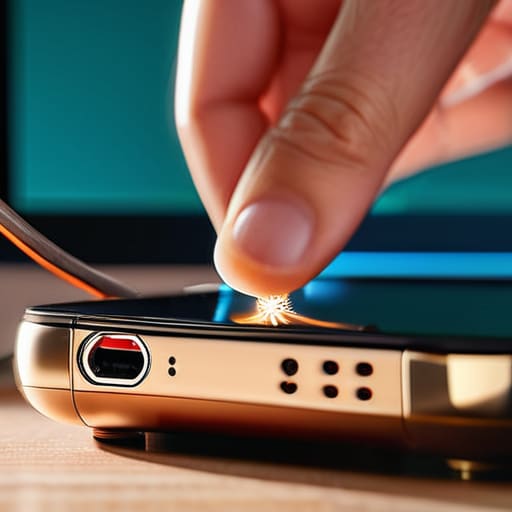
Once I’ve finished my little toothpick ritual to clear out the lint, I always look at the physical hardware. You have to distinguish between a failing wire and a failing brick. If you notice the connection only works when you hold the cord at a very specific, agonizing angle, you aren’t looking at a software glitch; you’re looking at broken charging cable symptoms. Inside that plastic sheath, the tiny copper strands have likely snapped from too much bending. I always test this by swapping the cord with a known working one. If the phone suddenly wakes up, the culprit was simply the internal fatigue of the metal.
Then there is the great debate: wall adapter vs computer charging. If you’re plugging into a laptop, you’re essentially asking a tiny, low-voltage trickle to fill a massive reservoir. Computers are designed to move data, not high-current power. If your smartphone battery isn’t charging during a troubleshooting session, stop relying on the USB port of your desktop. It might not be “broken”—it might just be too weak to overcome the phone’s natural power draw. Always default to a dedicated wall outlet to rule out a lack of amperage.
A Few More Ways Your Phone is Trying to Tell You Something
- Check for the “Ghost Connection” by wiggling the cord. If you have to hold the cable at a very specific, awkward angle just to get that little lightning bolt icon to appear, the solder joints inside the port have likely cracked or the metal pins have lost their spring. It’s a mechanical failure, not a software one.
- Look at the temperature of the back of the device. If the phone feels hot to the touch but the battery percentage isn’t moving, the internal charging circuit is likely tripping a safety thermal cutoff. The phone isn’t broken; it’s just refusing to swallow electricity because it thinks it’s going to melt.
- Don’t ignore the “Slow Crawl.” If your phone charges only when the screen is off, or if it takes six hours to go from ten to fifty percent, your amperage is dropping. This usually means your wall adapter is dying or you’re using a low-wattage brick meant for a much smaller device.
- Try a hard reboot while the cable is plugged in. Sometimes the software that manages the power handshake—the little conversation between the charger and the battery—gets stuck in a loop. Forcing the hardware to restart while it’s receiving current can sometimes kick the logic board back into gear.
- Inspect the pins with a magnifying glass if you can. I always keep my jeweler’s loupe handy for this. If you see a single tiny pin that looks flattened or blackened, you’ve got a short circuit. No amount of cleaning or new cables will fix a bent piece of copper.
What I’ve Learned Under the Magnifying Glass
Most “dead” phones are actually just suffocating; if you haven’t cleared the lint out of that port with a wooden toothpick, you aren’t actually troubleshooting, you’re just guessing.
Stop blaming the phone first—always test the cable and the brick separately, because a frayed wire or a tired adapter is much easier (and cheaper) to replace than a motherboard.
Pay attention to the heat; if the device stays cold when plugged in, the electricity isn’t even making it past the port, which tells you exactly where the physical break is located.
The Final Check
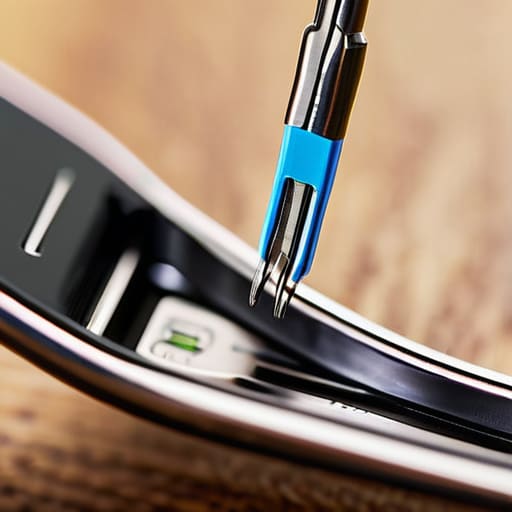
At the end of the day, fixing a charging issue is usually a process of elimination rather than a grand scientific discovery. We start by looking for the physical obstructions—that stubborn bit of pocket lint hiding in the port—and then we move on to the external components like the cable and the wall adapter. If you’ve swapped the cord, cleaned the connection, and tried a different outlet without success, you are likely looking at a failure deeper within the battery or the internal charging circuit itself. It is frustrating when the physical connection fails, but more often than not, the culprit is something much simpler than a dead motherboard; it’s just a bit of grit or a frayed wire that finally gave up the ghost.
I know it feels overwhelming when these little glass rectangles stop behaving, but I encourage you to look past the frustration. When we stop seeing our devices as magic black boxes and start seeing them as collections of interconnected parts, the world becomes much less intimidating. Even if this particular repair ends with a trip to a professional technician, you now know exactly what was happening behind that dark screen. Never lose that curiosity; once you understand how the energy is supposed to flow, you are never truly helpless against the machines.
Frequently Asked Questions
If I’ve cleaned out the lint and swapped the cable, but the port still feels "wiggly" or loose when I plug it in, is the internal connection actually snapped?
That “wiggle” is a physical symptom, and physics doesn’t lie. If the cable moves independently of the port housing, you’ve likely lost the mechanical integrity of the solder joints. Inside, those tiny copper pins are anchored to a circuit board; if the connection is snapped, the electrical path is interrupted by a physical gap. I’ve seen it in old clocks too—once the mounting fails, the movement is just a collection of loose parts.
I noticed my phone gets incredibly hot near the bottom when I try to charge it; is that just normal energy transfer or is something short-circuiting inside?
Now, that heat is a bit of a red flag. While lithium-ion batteries do get warm during the chemical dance of charging, they shouldn’t feel like a hot cup of tea. If that heat is concentrated right at the port, I suspect it isn’t just “energy transfer.” It’s more likely high resistance. If there’s a tiny bit of debris or a bent pin causing a partial short, the electricity is fighting its way through, and that struggle is being shed as heat.
Can a faulty battery actually mimic a broken charging port, or will those two problems always behave differently?
It’s a bit of a trickster, really. If a battery has developed high internal resistance, it can act just like a faulty port. You’ll plug it in, the phone might show a charging icon for a fleeting second, and then it just gives up. It’s not that the electricity isn’t reaching the device; it’s that the battery’s chemistry can no longer accept the handshake. If it only charges when the phone is cold, it’s the battery, not the port.



