

Last Tuesday, I found myself staring at a frozen screen during a faculty catch-up, listening to nothing but the rhythmic, mechanical click-click-click of my grandfather clock in the hallway. It’s a ridiculous sound when you’re trying to be professional, but it’s infinitely more predictable than a digital connection that drops the moment you actually have something important to say. Most people think learning how to use a video call app well requires a high-end studio setup or a degree in computer science, but that’s just marketing nonsense designed to sell you hardware you don’t need.
I’m not interested in the flashy features that sit idle most of the time; I want to know what’s actually happening under the hood of your connection. In this guide, I’m going to strip away the jargon and show you the essential mechanics of a clean call. We aren’t going to talk about “optimizing digital throughput,” but rather how to manage your light, your sound, and your bandwidth so the technology disappears entirely. If you can’t control the device without it becoming a distraction, you haven’t mastered it yet.
Mastering Lighting for Video Calls and Silent Presence

I spent last Tuesday with my old desk lamp and a multimeter, trying to understand why my webcam produces such grainy, ghost-like images when the sun goes down. It isn’t some magical software glitch; it’s basic photon starvation. When the sensor doesn’t have enough light to hit, it compensates by cranking up the gain, which just creates that digital “noise” we all hate. To fix this, you need to stop treating your light like an afterthought. Position your primary light source directly behind your screen, facing you, rather than having a window behind your back. This simple shift in lighting for video calls prevents you from becoming a dark silhouette against a bright background.
Once you’ve solved the visual side, you have to address the invisible mechanics: the sound. I once opened up a cheap condenser mic just to see how the diaphragm reacted to air pressure, and it reminded me that sound is just physical vibration. If your room has a lot of hard surfaces, those vibrations bounce around, creating an echo that makes you sound like you’re in a tiled bathroom. I’ve found that even a heavy rug or a few cushions can act as a mechanical dampener, effectively minimizing background noise without needing expensive acoustic foam.
Securing a Stable Internet Connection for Calls
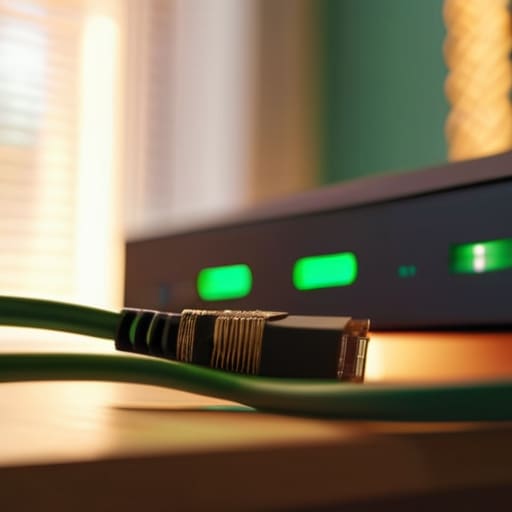
I spent last Tuesday with my router on the workbench, cleaning out a layer of dust that had settled into the heat sinks. It reminded me that even though we think of Wi-Fi as this invisible, magical ether, it is actually a very physical struggle of radio waves fighting through drywall, furniture, and even your neighbor’s microwave. When your video freezes, it isn’t usually a mystery; it’s just a packet of data that got stuck in traffic. If you want a stable internet connection for calls, the most honest advice I can give you is to stop relying on the air.
If you can, run an Ethernet cable directly from your router to your computer. It feels archaic, like using a landline, but it bypasses the entire chaos of signal interference. If you absolutely must stay wireless, move your chair closer to the source. I’ve found that improving video call quality often comes down to simple proximity rather than any fancy software setting. Think of it like a mechanical clock: if the tension in the spring is inconsistent, the whole mechanism stutters. Your data needs that same steady, unwavering tension to keep the image fluid.
The Invisible Friction: Five Ways to Smooth Out Your Digital Interface
- Watch your audio lag by using a dedicated headset rather than your laptop’s built-in speakers. When I opened up my old radio, I saw how much energy a driver needs to push sound through a thin casing; your laptop does the same, creating a feedback loop that makes you sound like you’re underwater.
- Clean your camera lens with a microfiber cloth before every session. It sounds trivial, but a layer of skin oil on that tiny glass element scatters light, creating a hazy bloom that makes you look like you’re trapped in a fog bank.
- Learn the “Mute” hotkey until it is muscle memory. In a mechanical clock, if one gear slips, the whole rhythm breaks; in a video call, one burst of background noise from your kitchen can derail the entire momentum of a conversation.
- Position your screen at eye level using a stand or even a stack of heavy textbooks. If you are looking down into the camera, you are forcing your participants to look up your nose, which creates a psychological barrier that makes it harder to build actual rapport.
- Close every unnecessary tab and background application on your computer. Your processor is a finite resource, much like the tension in a mainspring; if you’re asking it to run a dozen heavy programs while simultaneously encoding video, it will eventually stutter and fail you.
The Mechanics of a Smooth Call
Treat your audio like a precision gear; if your microphone is clipping or your background is a cacophony of unmuted chaos, the entire mechanism of conversation grinds to a halt.
View your lighting not as a vanity project, but as the essential data stream that allows the camera’s sensor to actually distinguish your face from the shadows of your room.
Remember that a video call is just a series of electrical impulses traveling through wires and air; if you don’t respect the stability of your connection, the signal will break, and your presence will simply vanish.
The Invisible Gearwork of Connection

At the end of the day, a successful video call isn’t about having the most expensive hardware; it is about managing the small, invisible variables that keep the mechanism running smoothly. We have looked at how light acts as our primary signal, how the stability of your data stream functions like the tension in a clock spring, and how your physical environment dictates the clarity of your presence. When you take the time to check your lighting and secure your connection before the meeting begins, you aren’t just following a checklist—you are removing the friction that prevents your actual message from getting through. You are ensuring that the technology stays in the background, doing its job quietly so that the human connection can take center stage.
I often find that when I am repairing an old timepiece, the most frustrating part isn’t the heavy gears, but the tiny, overlooked pins that hold everything in alignment. Digital communication is no different. If you master these subtle adjustments, you stop fighting the device and start using it as a transparent window. My hope is that you stop seeing these apps as mysterious black boxes and start seeing them as tools that you can fully command. Once you understand the mechanics of your digital presence, you can stop worrying about the signal and start focusing on the person on the other side of the screen.
Frequently Asked Questions
If I’m using a headset instead of my computer’s built-in speakers, does that actually help prevent that annoying echo on the other end?
It absolutely does. When I opened up my old desktop speakers last month, I saw how the diaphragm physically pushes air to create those waves. If your speakers are loud, that sound travels straight back into your microphone, creating a loop—that’s your echo. By using a headset, you’re physically isolating the sound source from the pickup source. You’re essentially breaking the feedback loop before the physics of the room can even get involved.
How much does the actual resolution of my camera matter if my internet connection is already struggling to stay stable?
To be honest, if your connection is already stumbling, a high-resolution sensor is just a heavy weight dragging the whole system down. I’ve seen it plenty of times: you try to push a massive, crisp image through a narrow data pipe, and the pipe simply bursts. The app will frantically compress the signal, turning your beautiful 4K feed into a blurry, pixelated mess. Stick to 720p; it’s enough to see my face without choking the bandwidth.
Is there a way to tell if my computer is working too hard to run the video app, or is it all just happening behind a black screen?
It’s certainly not just magic happening behind a black screen; there is a very real struggle occurring between your processor and that video stream. To see if your computer is gasping for air, I always open the Task Manager—on Windows—or Activity Monitor on a Mac. It’s like looking at the internal gears of a clock while it’s running. If you see the CPU or Memory percentages spiking toward 90 or 100, your machine is redlining just to keep up.



