
I was sitting at my workbench last Tuesday, squinting through my jeweler’s loupe at the delicate escapement of a 1920s pocket watch, when I realized how much the tech industry treats us like we’re incapable of understanding our own tools. They throw around terms like “NVMe throughput” and “IOPS” as if those numbers mean anything if you don’t know what’s actually happening inside the casing. Most people approach the question of how to choose an external drive by simply looking for the biggest number on the glossy packaging, but that is a dangerous way to shop. If a salesperson can’t explain to you how the physical platters or the flash cells are actually managing your data when the power is cut, they aren’t selling you a tool; they’re selling you a mystery box.
I have no interest in marketing jargon or the latest shiny distractions that break the moment you drop them on a kitchen floor. Instead, I want to show you what is actually happening under the hood. I’m going to strip away the hype and talk about the mechanical and electrical realities of these devices. By the time we’re done, you won’t just be picking a product based on a spec sheet; you’ll understand exactly how to select a drive that stays reliable even when you aren’t watching it.
Ssd vs Hdd Performance the Silent Rhythm of Data
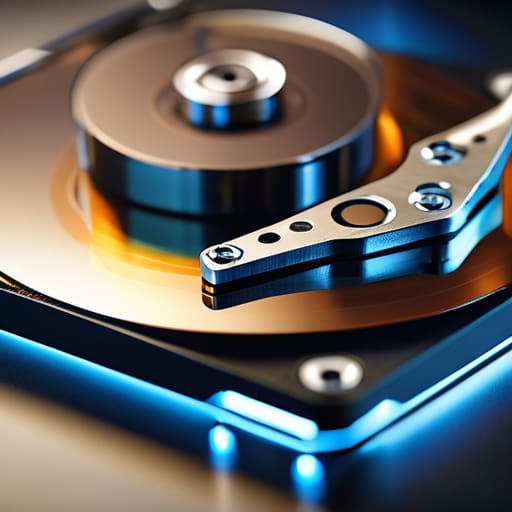
When I opened up my old desktop tower last week, I was reminded of the physical choreography happening inside. A traditional Hard Disk Drive (HDD) is essentially a tiny, high-speed record player. It relies on magnetic platters spinning at thousands of revolutions per minute, with a mechanical arm physically sweeping across them to find your files. It’s a beautiful, rhythmic dance of magnetism and motion, but it has a fundamental weakness: it can only be in one place at a time. If you drop it while that arm is mid-sweep, the physics of inertia becomes your enemy.
Solid State Drives (SSDs), on the other hand, have no moving parts at all. When I disassembled a portable SSD last month, I didn’t find a spinning motor; I found a silent landscape of flash memory chips. Because there is no mechanical arm searching for data, the transfer speeds explained in those glossy marketing brochures actually hold up in the real world. You aren’t waiting for a disk to spin up to speed; you are simply moving electrons. While an HDD is a reliable, heavy-duty warehouse for massive amounts of data, an SSD is the lightning-fast assistant that stays ready even when you aren’t looking.
An External Storage Capacity Guide for Quiet Reliability
When I opened up my old desktop to clean out the dust, I realized how much we rely on the invisible volume of our digital lives. People often ask me if they need a massive drive or just a small one, but I always frame it differently: how much “stuff” do you want to leave running in the background? If you are just storing a few dozen high-resolution photos, a tiny thumb drive might suffice. But if you are looking for robust data backup solutions to protect a decade of family videos, you need a reservoir, not a bucket.
I treat capacity like the mainspring in a clock; if it’s too small, the whole mechanism stalls. You have to account for the “ghost data”—those system files and temporary caches that expand when you aren’t looking. In my experience, it is far better to over-provision than to hit a wall mid-transfer. This external storage capacity guide is simple: look at your current usage, double it, and then add a buffer for the things you haven’t even thought to save yet. Don’t let a full drive be the reason your digital history grinds to a halt.
The Checklist: What to Look for Before the Screws Come Out
- Check the connection standard before you commit. I once opened a drive only to find the internal controller was bottlenecked by a cheap, proprietary cable; make sure you’re looking for USB 3.2 or Thunderbolt so the data actually flows where it’s supposed to.
- Look for a physical enclosure that actually makes sense. If it’s all seamless plastic with no visible seams, you’re looking at a glued-shut brick that will be impossible to service or upgrade once the first component fails.
- Don’t trust a “rugged” label blindly. I want to see the rubberized bumpers and the actual seals around the ports; if I can’t see how the device keeps the dust and moisture out, I don’t trust it to keep my files safe in a backpack.
- Verify the power requirements. Some larger desktop drives need their own dedicated wall plug because the USB port alone can’t provide enough current to spin the platters, and there’s nothing more frustrating than a drive that clicks rhythmically because it’s starving for juice.
- Check the brand’s reputation for component quality. It’s not just about the name on the box, but whether they use reliable controllers; I prefer brands that have a history of predictable thermal management, because heat is the silent killer of every circuit I’ve ever repaired.
The Physics of a Good Choice
Don’t get blinded by the gigabytes; a drive is only as good as its ability to survive being bumped on your desk while it’s busy spinning or reading.
Match the mechanism to the mission—use an SSD for the frantic, moving parts of your life, and save the heavy, spinning platters of an HDD for the archives that just need to sit still.
Before you tap your card, ask yourself if you can explain to a student exactly how that specific drive will handle a sudden power cut or a drop.
The Final Gear in the Machine
At the end of the day, choosing a drive isn’t about chasing the highest numbers on a spec sheet; it’s about matching the tool to the task. If you need a heavy-duty vault for your archives, a high-capacity HDD will serve you faithfully without breaking the bank. But if you need speed for active projects, don’t settle for anything less than an SSD. You have to weigh the physical reality of how that data moves—whether it’s a spinning platter or a silent flash chip—against how much you actually need to carry. Once you understand the mechanical trade-offs between capacity, speed, and durability, you aren’t just buying a plastic box; you’re selecting a reliable component for your digital life.
I often find myself sitting at my workbench, peering into the guts of a broken clock, reminded that everything works because its parts have a specific, honest purpose. Your external drive should be no different. Don’t let the marketing jargon cloud your judgment; instead, look for the device that makes sense when the lights are off and the work is done. When you can look at a drive and say, “I know exactly how this keeps my memories safe,” then you have found the right one. Technology is only as good as our understanding of its limits, so choose something that respects the rhythm of your needs.
Frequently Asked Questions
If I drop my drive on the kitchen floor while it's plugged in, is it going to survive the impact?
If that drive is an HDD, my heart would sink. I’ve seen the platters inside; they spin at thousands of revolutions per minute, hovering on a microscopic cushion of air. A sudden jar while it’s reading can cause the head to crash into the disk, physically scratching the data away. An SSD, however, is just a silent arrangement of flash memory chips. No moving parts means it can take a tumble without a mechanical tantrum.
Does the cable actually matter, or is any USB cord good enough to move my files?
The Cable: The Unseen Bottleneck in Your Data Stream
How do I know if my old computer can even talk to these new, tiny drives?
It’s like trying to fit a modern high-pressure hose onto a vintage garden tap. Before you buy, look at your computer’s ports. Most new, tiny drives use USB-C—that small, rounded plug. If your machine only has the older, rectangular USB-A slots, you’ll need a bridge, or an adapter. I always check the “handshake” first; if the physical connection isn’t seamless, the data won’t flow, no matter how fast the drive claims to be.



