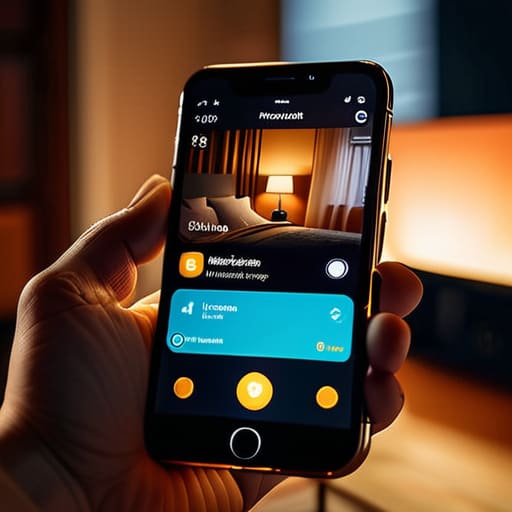

I spent thirty-four years in a physics classroom, and if there is one thing I learned, it is that a shiny interface is often just a mask for a poorly designed mechanism. Most tech journalists will tell you that learning how to use a smart home app is about “seamless integration” or “lifestyle enhancement,” but that is just marketing fluff designed to hide the friction. Last Tuesday, I sat on my kitchen floor with a screwdriver and a disassembled smart plug, trying to figure out why the software insisted the device was “offline” when the circuit was clearly closed and the copper was making contact. It’s infuriating when the digital layer forgets how to talk to the physical world, leaving you staring at a spinning loading icon instead of a lit lamp.
I have no interest in teaching you how to navigate menus just for the sake of clicking buttons. My goal is to show you the actual logic behind the screen, stripping away the jargon until you understand the sequence of commands that makes the hardware move. I promise to explain this process not as a series of magical gestures, but as a predictable chain of events that you can control, even when the Wi-Fi decides to act up.
Mastering the Interface When the Screen Goes Dark
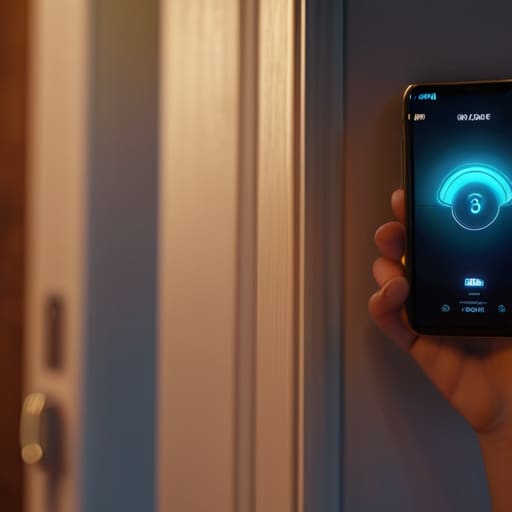
When I opened up my first digital thermostat last month, I wasn’t looking for a software manual; I was looking for the relays and the copper traces. But once you realize that the app is just the remote control for those physical connections, the “magic” disappears. To master the interface when the screen goes dark, you have to stop treating the app like a mystery and start treating it like a series of switches. Most people get lost in the menus, but the real trick is setting up smart home scenes. Think of a “scene” as a pre-set mechanical sequence—like a clockwork movement where one gear turn triggers three others. You aren’t just tapping a button; you are programming a chain reaction so that when you tap “Sleep,” the locks engage and the lights dim without you having to touch a single physical dial.
If the app feels unresponsive, don’t panic and start clicking wildly. Usually, it’s just a breakdown in communication between the chip and your router. I spent an hour yesterday troubleshooting smart device connectivity on my porch light, only to realize the signal couldn’t penetrate the heavy brass casing of the fixture. Once you understand that the app is simply a bridge between your finger and a radio wave, the frustration turns into a simple logic puzzle.
Connecting Smart Devices to Wi Fi Without the Noise
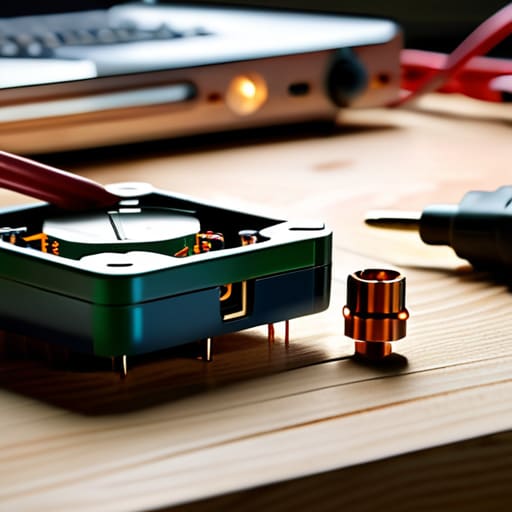
I spent yesterday afternoon with a screwdriver and a multimeter, deconstructing a cheap smart plug just to see how it actually talks to the router. It isn’t magic; it’s just a tiny radio chip waiting for a specific handshake. When you are connecting smart devices to Wi-Fi, the biggest headache isn’t the hardware—it’s the invisible friction between your frequency bands. Most of these little gadgets are quite simple-minded; they only speak 2.4GHz. If your phone is hogging the 5GHz lane, the device just sits there, blinking its little LED like a confused student in a physics lecture.
To stop the digital shouting, you have to clear the path. I find that troubleshooting smart device connectivity usually comes down to a simple matter of proximity and frequency. If the app keeps spinning its loading wheel, bring the device right next to the router for the initial handshake. Once the credentials are baked into its memory, you can move it back to its corner. It’s much like winding a clock; you need that initial, precise tension to ensure the mechanism holds steady once you walk away.
Five Ways to Keep Your Digital Gears from Grinding
- Name your devices by their location, not their model number; “Hallway Lamp” tells your brain exactly where the light is, whereas “Smart-Bulb-X100” is just a string of characters that does nothing for your intuition.
- Group your devices into “Rooms” within the app so you aren’t scrolling through a frantic list of twenty items just to dim the lights for a movie; you want to move the whole room at once, like turning a single dial on an old radio.
- Set up “Automations” for the things you do without thinking—if the app knows you want the porch light on at sunset, you don’t have to remember to command it; it just becomes part of the house’s natural rhythm.
- Don’t ignore the “Scenes” feature, which is essentially just a pre-set combination of settings; it’s like setting a clock to chime at a specific hour, allowing one tap to prepare the entire house for sleep.
- Check your signal strength in the app’s settings regularly, because a smart plug is useless if the invisible waves can’t reach it; if the connection is stuttering, it’s usually a physical barrier or distance issue, not a ghost in the code.
Lessons from the Workbench
Don’t let the sleek glass screen fool you; underneath the interface, every command is just a digital signal traveling to a physical relay, so treat the app like a remote control, not a magic wand.
If a device refuses to pair, stop tapping the screen and check the signal path—usually, it’s a physical obstruction or a frequency conflict, much like a gear with a chipped tooth refusing to catch.
A smart home only works if you build habits around it, meaning you should set your automation routines to trigger based on the actual movement of your day, rather than just playing with the novelty of it.
The Mechanics of a Quiet Home
At the end of the day, managing a smart home through an app isn’t about mastering some complex, invisible sorcery; it is about understanding the logic of the sequence. We have looked at how to navigate an interface that disappears when you aren’t tapping it, and how to ensure your devices find their way onto your Wi-Fi without creating a digital shouting match in your router. Once you realize that every icon is just a digital lever and every connection is just a tiny, invisible wire, the frustration begins to melt away. You aren’t just clicking buttons; you are setting the gears in motion so that your environment responds to your needs before you even have to ask.
I spent decades teaching my students that physics isn’t something that happens in a textbook, but something that happens when you drop a ball or wind a spring. Your smart home is no different. It is a collection of small, predictable mechanisms that, when tuned correctly, work in the background to make your life smoother. Don’t let the sleek glass screens intimidate you. Treat the app like a well-oiled timepiece: learn its rhythms, respect its limits, and remember that true mastery comes from knowing exactly what is happening behind the glow of the screen. Now, go ahead—set your automation, dim those lights, and enjoy the silence.
Frequently Asked Questions
What happens to my lights if the Wi-Fi cuts out while I'm in the middle of a routine?
If the Wi-Fi drops mid-routine, the “brain” loses its connection to the command, but the hardware remains. Most smart bulbs have a tiny microcontroller inside that keeps its last known state—if they were on, they stay on. However, the automation itself dies. Without that signal, the timer can’t trigger the next step. It’s like a clockwork mechanism where the mainspring has snapped; the gears are there, but the energy is gone.
How do I stop the app from constantly pestering me with notifications every time a sensor trips?
The constant pinging is just the software’s way of screaming for attention, but you can teach it some manners. I sat with my hub last night and went into the ‘Settings’ menu—look for the little bell icon. You’ll want to find ‘Notification Preferences.’ Instead of letting every sensor trip trigger an alert, toggle them to ‘Critical Only.’ It’s like adjusting the escapement on a clock; you’re just limiting the movement to what actually matters.
Is there a way to make these devices talk to each other without needing five different apps open at once?
The short answer is yes, but you have to stop thinking about the individual gadgets and start looking for the “brain” that sits between them. I spent yesterday afternoon tracing the logic of my smart hub—it’s essentially a central conductor for a very messy orchestra. Instead of juggling five apps, you use a single platform like Apple Home, Google Home, or even a dedicated Zigbee hub. Once they’re all plugged into that same central nervous system, they finally start playing from the same sheet music.



