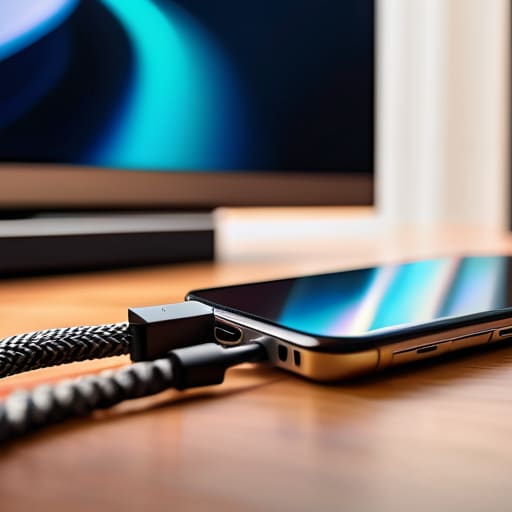

I was sitting at my workbench last Tuesday, squinting through my loupe at the tiny, copper-laden pins of a discarded charging port, when it hit me how much we’ve all been lied to. People act like finding out how to connect a phone to a TV with a cable is some sort of digital sorcery, but it isn’t magic; it’s just a matter of matching the right physical pathways. I watched my grandson struggle for twenty minutes with a wireless setup that kept dropping the signal, and I couldn’t help but think that we’ve traded reliable physics for temperamental software.
In this guide, I’m going to strip away the marketing jargon and show you exactly what is happening when those electrons start moving from your pocket to your living room screen. I won’t give you a list of expensive, “smart” gadgets you don’t need; instead, I’ll show you how to identify the specific ports on your devices and which physical bridge will actually work. We are going to look at the hardware reality of your connections so you can stop guessing and start watching.
Guide Overview
Tools & Supplies
- Smartphone (The source device)
- Television (The display device)
- HDMI Adapter/Dongle (1 unit, compatible with phone port)
- HDMI Cable (1 unit, standard length)
Step-by-Step Instructions
- 1. First, you have to identify which “language” your phone speaks, and that usually starts with the port at the bottom. If you have an older iPhone, you’re looking for that little wide slot called Lightning; if you have a newer one, it’s likely USB-C, and if you’re on Android, it’s almost certainly USB-C as well. I spent twenty minutes yesterday poking at the pins with a magnifying glass just to be sure which generation of hardware I was dealing with, so don’t be afraid to look closely.
- 2. Once you know the port, you need the right bridge, which is typically an adapter—often called a “dongle” by the kids—that converts your phone’s signal into something an HDMI cable can carry. You can’t just jam a standard USB cable into a TV and expect magic; you need that middleman to translate the digital data into a video signal. I’ve found that the official manufacturer adapters tend to be much more reliable than the cheap knock-offs that lose the signal the moment you sneeze.
- 3. Now, grab your HDMI cable—the one with the trapezoid-shaped heads—and plug one end firmly into the adapter you just bought. The other end needs to go into one of the HDMI ports on the back or side of your television. I always make sure to listen for that slight click to ensure the connection is seated properly, because a loose pin is just a recipe for a flickering screen.
- 4. Take your phone and plug the small end of the adapter into the charging port. If you’re using a more complex adapter, it might also have a little extra hole for a power cable; if it does, plug it into a wall outlet immediately. Many of these adapters are “parasitic,” meaning they need a bit of external juice just to have the strength to push a high-definition image through that thin copper wire.
- 5. Pick up your TV remote and look for a button labeled “Input” or “Source.” You’ll need to cycle through the options—HDMI 1, HDMI 2, etc.—until you see the image from your phone appear on the screen. It’s a bit like tuning an old radio; you have to find the right frequency to catch the signal you’re looking for.
- 6. Once the picture pops up, grab your phone and swipe down from the top to check your settings. Sometimes the phone is a bit stubborn and needs you to manually select “Screen Mirroring” or “External Display” from the control menu. If everything is working, you’ll see your phone’s entire interface mirrored perfectly on the large screen, and you can finally stop squinting at that tiny five-inch display.
Decoding Usb C to Hdmi Adapter Compatibility and Displayport Alt Mode Expla
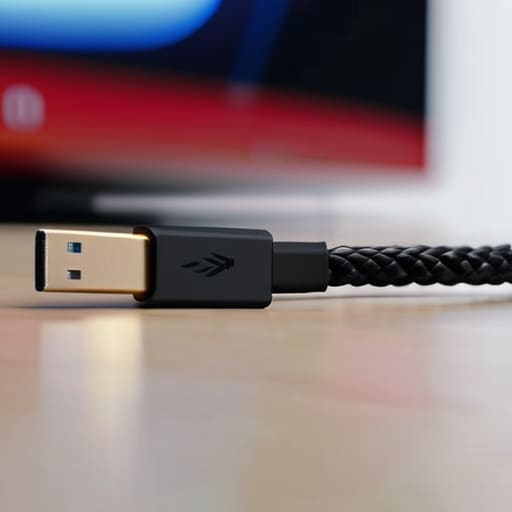
Now, if you’ve opened up your drawer of spare bits and found a USB-C to HDMI adapter, don’t assume it’s a magic wand. I once spent an afternoon troubleshooting a connection only to realize the adapter was just a “dumb” charger bridge with no data lanes. For this to work, your phone needs to support what we call DisplayPort Alt Mode explained in the simplest terms: it’s the ability for the USB-C port to act like a high-speed highway for video signals, not just a trickle for electricity. If your phone’s hardware doesn’t have that specific internal wiring to switch “lanes,” that expensive little dongle is nothing more than a paperweight.
It’s a bit like my old grandfather clocks; if the escapement isn’t designed to regulate the energy, the whole mechanism just sits there. When you’re connecting android to tv via cable, you’re essentially asking the phone to reroute its internal processing power through a port usually reserved for charging. Always check your device’s technical specifications for that “Alt Mode” capability before you go buying adapters. It saves you the frustration of a silent, black screen and a lot of wasted time.
The Silent Pulse Mhl Technology for Smartphones and Wired Screen Mirroring
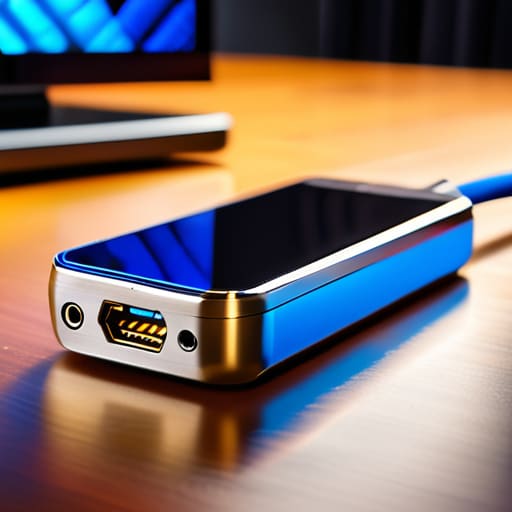
I remember when “mobile” meant something you could actually carry in a pocket without it feeling like a brick, but even these modern glass slabs have some old-school tricks up their sleeves. Before USB-C became the universal standard, we had to rely on MHL technology for smartphones to get a signal out of those tiny charging ports. I once spent an afternoon with a disassembled older Android device, trying to trace how a single pin could carry both power and a high-definition video signal simultaneously. It’s a clever bit of engineering—essentially a handshake between the phone and the TV that tells the hardware to stop just charging and start broadcasting.
When you are deciding between wired screen mirroring vs wireless, you have to consider the “ghost in the machine”—latency. When I use a wireless cast, I can see the tiny delay, that stutter where the signal struggles to catch up to the movement. But with a cable, the physics are much more honest. There is no compression happening in the air; the electrons are just flowing through the copper. If you are using an older iPhone, you’ll likely need a lightning to digital AV adapter to bridge that gap, but the principle remains the same: a direct, physical path is always the most reliable way to ensure your picture actually moves when it’s supposed to.
A Few Lessons from My Workbench: Avoiding the Frustrations
- Check your port’s “DNA” before you buy anything. Just because a cable fits into your phone doesn’t mean the internal wiring is capable of carrying a video signal; I’ve spent many an afternoon staring at a perfectly plugged-in cable that was doing nothing more than charging a battery because it lacked the specific data lanes for video.
- Don’t underestimate the importance of a solid handshake. When you plug that adapter in, you’re essentially asking two different computers to agree on a language; if the screen stays black, try unplugging the power to the adapter first, then the phone, then reconnecting them in that order to force a fresh negotiation.
- Watch your power levels like a hawk. Converting a tiny mobile signal into a massive TV display takes a surprising amount of energy, so if you’re using a USB-C adapter, try to find one with a “pass-through” charging port so your phone doesn’t die right in the middle of your movie.
- Mind the physical strain on your port. I see people hanging heavy, long cables off the side of their phones, which puts immense leverage on the tiny solder joints inside the device; if you’re sitting on a couch, use a short, flexible adapter rather than a heavy, rigid cord that acts like a crowbar.
- Listen to the audio, not just the eyes. Sometimes the video jumps to the TV perfectly, but the sound stays trapped in your phone’s tiny speakers; if that happens, you usually need to go into your phone’s sound settings and manually tell it that the “output” has changed from the internal speaker to the HDMI device.
What I Learned Under the Hood
It isn’t just about the plug fitting into the hole; you have to ensure your phone’s internal wiring supports DisplayPort Alt Mode, or that little adapter is just a very expensive piece of plastic.
A cable is essentially a high-speed highway for electrons, and if you want your video to actually show up without stuttering, you need a cable rated for the specific bandwidth your phone is trying to push out.
While wireless feels like magic, nothing beats the physical reliability of a wired connection—it removes the guesswork of signal interference and gives you a direct, stable path from your processor to your screen.
The View from the Workbench
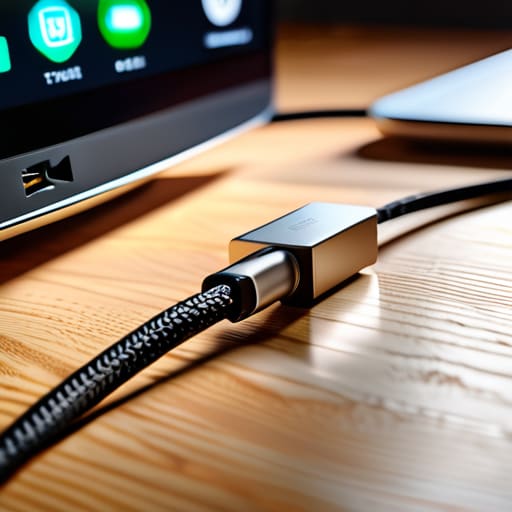
At the end of the day, connecting your phone to a TV isn’t just about finding the right dongle; it’s about understanding the handshake happening between your pocket-sized computer and the big screen. Whether you are relying on the specific electrical pathways of DisplayPort Alt Mode through a USB-C port or utilizing the older, specialized signaling of MHL, you are essentially creating a physical bridge for data to travel. I’ve learned through years of tinkering that the most frustrating “broken” cables are often just a mismatch of protocols. Once you verify that your hardware supports the specific electrical handshake required, the magic of seeing your tiny screen expand into your living room becomes a predictable, reliable piece of physics rather than a guessing game.
I often find myself staring at the tiny, intricate pins inside these connectors, marveling at how much complexity we have managed to shrink down. It can feel overwhelming when the tech doesn’t behave, but I encourage you to look past the frustration and see the mechanical elegance beneath the plastic casing. Don’t just be a consumer of these gadgets; try to see them as the logical machines they are. When you finally get that image to flicker to life on the television, remember that you aren’t just watching a video—you are witnessing a successful transmission of energy and information through a tiny, carefully engineered copper vein.
Frequently Asked Questions
If I use an adapter to connect my phone, will it drain my battery faster since the phone is working harder to push that signal out?
You’ve hit on a very practical observation. When I opened up my old handheld gaming devices, I could see the power draw spike during high-output tasks. Yes, your battery will drain faster. Your phone isn’t just sending data; it’s actively powering a conversion chip inside that adapter to translate digital signals into something your TV understands. It’s extra work for the processor and the battery. If you’re settling in for a movie, I’d keep a charger handy.
I have an older phone with a micro-USB port; can I still get a picture on my TV, or is that technology too outdated for modern adapters?
It’s not quite a relic yet, but it is a bit temperamental. I had to crack open an old Micro-USB hub last week to see why, and it’s all about that MHL chip. If your phone supports MHL (Mobile High-Definition Link), you can use a specific adapter to push video through that tiny port. If it doesn’t have that hardware built-in, the port is just for power and data—it won’t have the “muscles” to move video signals to your TV.
Why does my screen sometimes flicker or go black for a second right after I plug the cable into the HDMI port?
That little hiccup—that momentary blink of darkness—is just the handshake. When you plug that cable in, the phone and the TV aren’t just touching; they are having a frantic, millisecond-long conversation. They’re negotiating resolution, refresh rates, and HDCP encryption to make sure nobody is stealing the signal. It’s like two strangers meeting and quickly agreeing on which language to speak before they can actually start talking. It’s perfectly normal.



